
In Google Analytics 4, scope tells you what a dimension describes: a user, an event, or an ecommerce item. For a page category sent with page_view, choose Event. Choose Item for a product or service attribute inside an ecommerce event’s items array—not because a web page can be called an “item.”[2]
Start with the question you need to answer, then put the parameter at the matching data level. Registering a custom dimension does not collect the data for you; the website or app must send it first.
User, event, and item scope: the practical difference
| Scope | What it describes | Example | Where it belongs |
|---|---|---|---|
| User | A characteristic of the user | membership_tier = free |
A user property; update it when the known tier changes |
| Event | The particular action being measured | page_category = analytics on page_view |
An event parameter |
| Item | A particular product or service in an ecommerce event | item_color = blue on an item in add_to_cart |
Inside each relevant object in the items array |
These are the three custom-dimension scopes described by Google. User scope does not mean “a value that can never change”; event scope does not mean “a value that must be different on every event.” Several page views can share the same category. The important distinction is what the value describes.[2]
Where does session scope fit?
GA4 has built-in session-level dimensions, but Session is not a custom-dimension scope option. Do not confuse the custom-definition selector with all the scopes used elsewhere in Analytics. For a session-level question, first check whether a predefined dimension answers it instead of creating a user or event field with misleading semantics.[2]
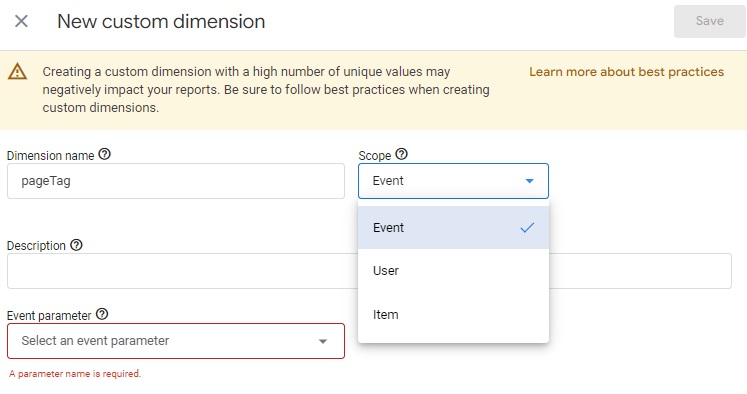
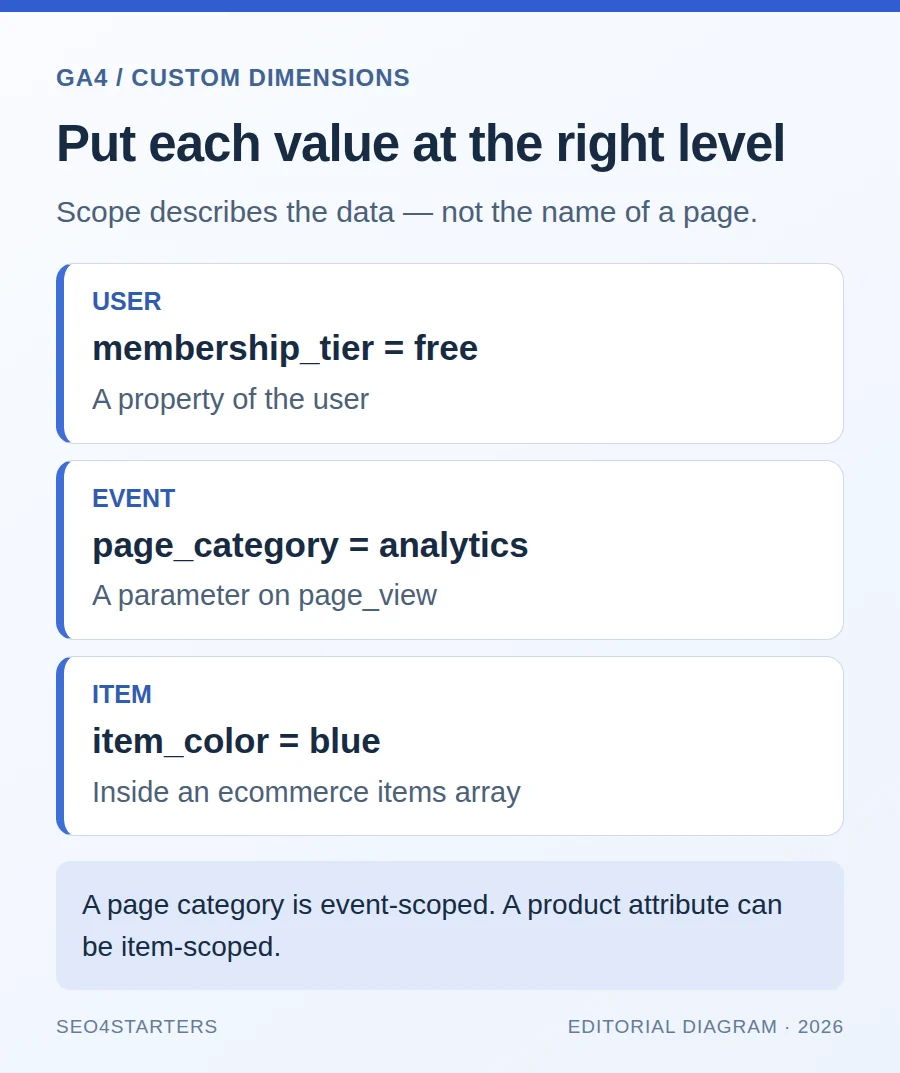
Example 1: page_category belongs to the page_view event
Suppose an editorial site groups its pages into analytics, technical_seo, and content. To measure page views by that classification, send page_category on the relevant page_view event and register an event-scoped custom dimension for it.[3]
The following is a synthetic event-object example, using the Measurement Protocol name/params structure. It is not a complete HTTP request or executable tagging code. In Google Tag Manager, use page_view as the event name and map the fields inside params to event parameters.[10]
{
  "name": "page_view",
  "params": {
    "page_location": "https://example.com/guides/analytics/",
    "page_title": "Analytics guides",
    "page_category": "analytics"
  }
}
Add the category to the page view you already intend to send. Do not send a second page_view merely to attach a category. If you deliberately implement manual page views, coordinate both the Google tag’s default page view and Enhanced Measurement’s history-change page views; disabling one does not automatically disable the other.[8]
On a single-page application, resolve the category for the new route before sending its page view. Test moving between two categories: a reused variable must not keep the previous page’s value. If other events also need page category, send the parameter on those events too; an event parameter is not a user property that automatically describes future actions.
Do you need a custom page-category dimension at all?
For a single broad classification, GA4’s predefined Content group dimension may already fit. Google documents setting it with content_group. Use page_category when you need a separate custom classification; do not register a custom dimension just to duplicate an existing built-in field.[12][2]
Example 2: item_color belongs inside the items array
For an online store, color can describe each product added to a cart. Put the custom item_color parameter inside the item object. The event-level currency and value describe the cart action; the nested fields describe the individual product.[4]
{
  "name": "add_to_cart",
  "params": {
    "currency": "USD",
    "value": 30,
    "items": [
      {
        "item_id": "DEMO-TEE-BLUE",
        "item_name": "Example T-shirt",
        "item_category": "Apparel",
        "item_color": "blue",
        "price": 30,
        "quantity": 1
      }
    ]
  }
}
This is synthetic product data, not a customer transaction. The example value equals the item price multiplied by quantity. With multiple products, attach each color to its own item, not as one event-level value that loses the product relationship.
item_category is a predefined ecommerce parameter; it does not need a duplicate custom definition. In this example, item_color is the extra business-specific parameter that needs an Item-scoped custom dimension. Review predefined item fields before adding new ones.[4][13]
How to register the matching custom dimensions
- Confirm the property receives the parameter at the correct level. A custom definition is a reporting configuration, not a collection trigger.
- With Editor access or above, open Admin → Data display → Custom definitions → Create custom dimension.
- Enter a readable dimension name, choose the scope, and enter the exact parameter name used in your implementation.
- Save and allow processing time before checking reports. Google advises allowing 24–48 hours after sending the custom data and creating an event-scoped definition.[3]
| Dimension name | Scope | Parameter to register | Reporting check |
|---|---|---|---|
| Page category | Event | page_category |
Use with event count filtered to page_view |
| Item color | Item | item_color |
Use an exploration with compatible item-level ecommerce metrics |
Scope and the linked parameter cannot be changed after saving. If you registered page category with Item scope, create a correctly scoped definition and update your reporting plan rather than expecting the old definition to reinterpret the data. Google also notes that item-scoped custom dimensions cannot be added to standard reports; use an exploration for that example.[3][13]
Validate the payload, then validate the report
- Enable debugging for your test device: use Tag Assistant or GTM Preview, then open Admin → Data display → DebugView and select the correct device.[5]
- For page category: load one page in each of two categories. Open each
page_viewin DebugView and inspectpage_category. Confirm one intended page view per navigation. - For item color: perform one test add-to-cart. Inspect the event and its item data; also inspect the outgoing request in Tag Assistant or browser network tools to confirm
item_coloris nested in the relevant item, not besidecurrency. - Check reports separately: after processing, import Page category into an exploration and filter to
page_view. For Item color, use a separate item-focused exploration. Seeing a parameter in DebugView does not prove the custom dimension is correctly registered. - When nothing appears: check the property, parameter spelling, data level, consent state, and applicable filters before changing the scope. Google warns that client-side privacy controls or denied Analytics-cookie consent can prevent events appearing in DebugView.[5]
Keep categories useful: cardinality, quotas, and privacy
Cardinality is the number of distinct dimension values. Use a controlled category list, not a unique URL, timestamp, or visitor ID disguised as a category. Google treats more than 500 distinct values as high-cardinality guidance—not a hard collection limit—and high-cardinality reporting can group less common combinations into an (other) row.[6]
Custom definitions also consume property quotas. Prefer a dimension you will actually use and avoid registering duplicates of built-in dimensions. A scope decision is not a reason to register every parameter.[2]
Never send names, email addresses, phone numbers, or form free text as these dimension values. Review page URLs and titles too: identifiers can leak through query strings even when the custom category itself is safe. Follow applicable consent requirements and your site’s privacy controls; scope selection does not make personal information safe to collect.[7]
Download the synthetic scope examples (JSON). The file contains the two teaching examples above, with no client identifiers, credentials, personal data, or executable code. It is a reference fixture, not a ready-to-send Measurement Protocol request.
Frequently asked questions
Should a category page use Item scope?
No. If you send the page’s category with page_view, use an event-scoped custom dimension. Item scope is for product or service attributes in an ecommerce items array. A category page can also display products, but that does not turn the page-view classification into item data.[2]
Is item_category the same thing as page_category?
No. item_category classifies an ecommerce item and is predefined. page_category in this guide is a custom parameter classifying a page view. They can have similar text values while answering different questions.
Why can I see the parameter in DebugView but not in a report?
Collection and reporting configuration are separate. Check the exact parameter name, definition scope, compatible report dimensions and metrics, and processing time. For item-scoped custom dimensions, use an exploration rather than a standard report.[3][13]
Does choosing Event scope change how key events are counted?
No. A dimension’s scope describes its data level. A key event’s counting method decides whether repeated occurrences of that key event count once per event or once per session. See GA4 key event counting methods for that separate decision.
Hebrew guide: Google Analytics 4: the practical guide in Hebrew.
Sources
Primary Google documentation reviewed on October 15, 2026. The screenshots are retained historical illustrations, not evidence of the current interface layout.
- [2] Google: About custom dimensions and metrics.
- [3] Google: Create event-scoped custom dimensions.
- [4] Google: Create item-scoped custom parameters.
- [5] Google: Monitor events in DebugView.
- [6] Google: About the (other) row and cardinality.
- [7] Google: Avoid sending personally identifiable information.
- [8] Google: Measure pageviews.
- [10] Google: Measurement Protocol reference.
- [12] Google: Create content groups.
- [13] Google: Create item-scoped custom dimensions.