
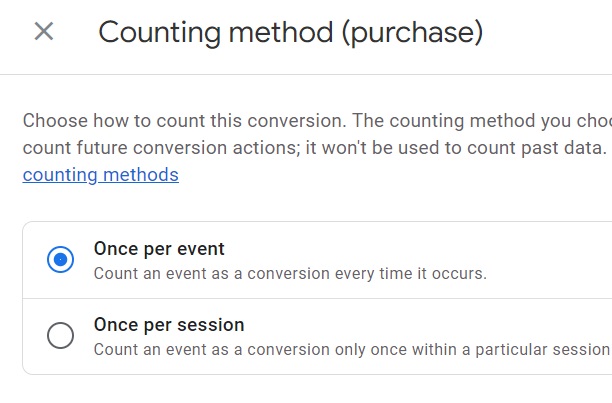
Use “Once per event” for GA4 key events unless your measurement definition specifically requires at most one count of that key event per session. Google labels once per event Recommended and once per session Legacy. Once per session is not automatically more accurate for leads or downloads, and it does not deduplicate a person or business outcome across sessions.[1]
The decision is about what you want the count to mean. First make sure the event fires for a real, completed action. Then choose whether repeated valid actions in the same session should contribute multiple key events.
How the two counting methods differ
| Method | What it counts | Five occurrences of the same key event in one session | Main trade-off |
|---|---|---|---|
| Once per event — Recommended | Each occurrence of that key event | 5 key events | Preserves repeated actions; accurate tagging is still essential |
| Once per session — Legacy | At most one occurrence of that key event within a session | 1 key event | Suppresses repeated occurrences, including legitimate ones |
This is Google’s documented five-occurrence example. The recommendation is not limited to purchases: Google recommends once per event because it distinguishes sessions with several key events from sessions with only one.[1]
A worked example across two sessions
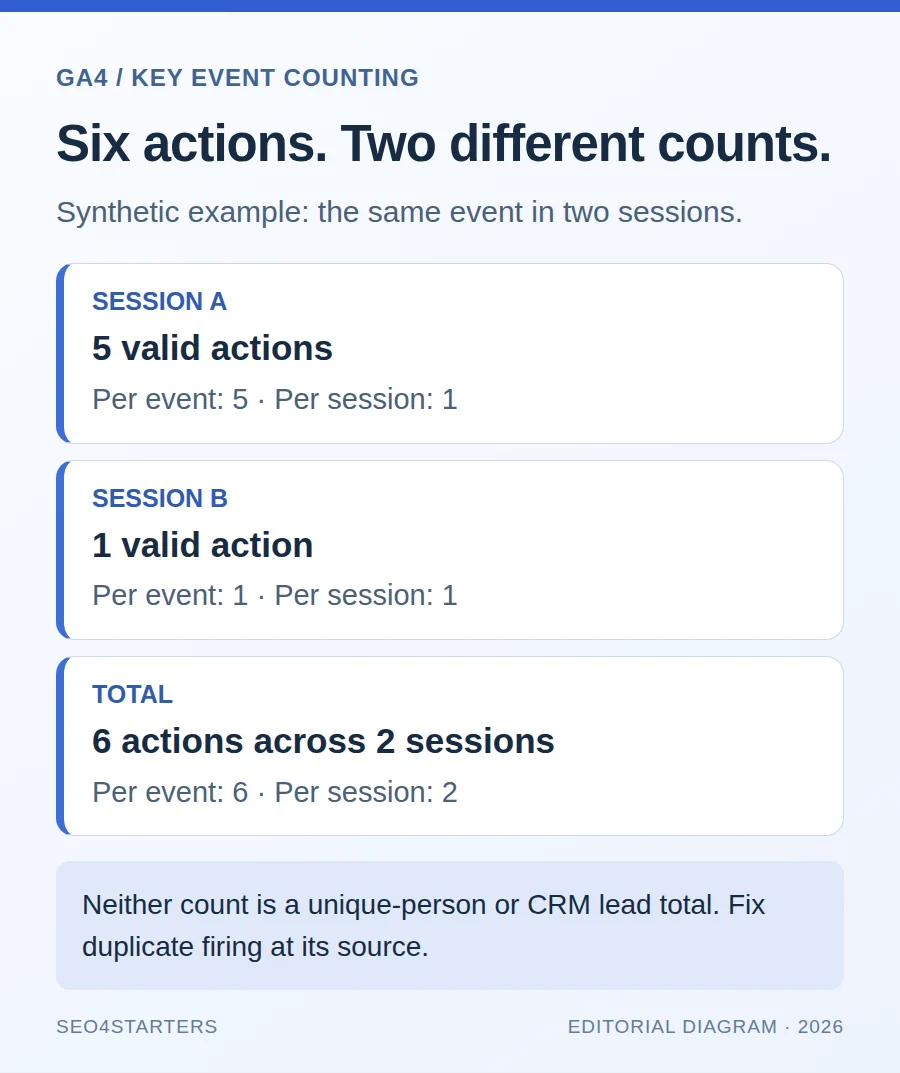
Synthetic illustration: the same hypothetical visitor completes generate_lead five times in session A and once in session B. Assume the actions are valid, the event is marked as a key event, and there are no other reporting complications.
| Session | Recorded event occurrences | Key events: once per event | Key events: once per session |
|---|---|---|---|
| A | 5 | 5 | 1 |
| B | 1 | 1 | 1 |
| Total | 6 | 6 | 2 |
Neither total answers “How many unique qualified leads did the CRM accept?” A session-level cap is not person-level, submission-level, or lifetime deduplication. If that is your KPI, define uniqueness in the business system and reconcile Analytics with it rather than treating a counting setting as a CRM rule.
Choose the method by the question, not by “transactional” labels
| Question | Starting choice | Implementation requirement |
|---|---|---|
| How many purchases were completed? | Once per event | Send a valid purchase once per order and a unique, non-empty transaction_id |
| How many successful enquiry submissions occurred? | Once per event | Fire on confirmed success, not on the submit-button click |
| How many download actions occurred? | Once per event, if repeated downloads matter | Define whether the action is a link interaction or a verified completed download |
| Does this legacy KPI allow only one occurrence of a particular goal per session? | Once per session can match that definition | Document the session cap and accept that it suppresses additional valid actions |
For a one-time newsletter subscription, improve the definition of a successful new subscription at the source. A repeat button click, a thank-you-page refresh, and a genuinely new accepted action are different situations. Once per session does not determine which one occurred.
If the question is simply “What proportion of sessions included this key event?”, use an appropriate session-based rate or session analysis. Do not change an occurrence count merely because the dashboard also needs a session-based KPI. Write down the numerator and denominator before comparing reports.
How to change a key event’s counting method
- Select the intended GA4 property. You need Marketer access or above to choose a counting method.
- Open Admin → Data display → Events, then the Key events tab.
- Open the menu at the far right of the relevant key-event row and choose Change counting method.
- Select Once per event or Once per session and save.[1]
The change affects future key events only; it does not recalculate historical data. Record the change date, event name, old method, new method, and business reason in your measurement log. A before-and-after comparison otherwise risks presenting a definition change as a marketing result.[1]
Check existing settings rather than assuming every property started the same way. Google documents once per session as the default for certain key events migrated from Universal Analytics goals, and once per event for other key events.[1]
Duplicate events: fix the implementation, not the timeout
Do not extend the session timeout as a duplicate-counting fix. A timeout controls when inactivity ends a session; it does not identify a repeated submission or a repeated order. GA4’s default timeout is 30 minutes of inactivity. Change it only when a justified session definition requires it, not to make key-event totals look smaller.[11]
Once per session may hide repeated firing inside one session while leaving duplicate collection untouched. It also cannot stop the same erroneous action being counted again in another session. Investigate these causes first:
- Two installation paths: a hard-coded event and a GTM tag both send the same action.
- Two triggers for one outcome: both a form success callback and a thank-you-page view trigger the same event.
- Reloads and navigation: refreshing or revisiting a confirmation URL fires the event without a new accepted submission.
- Client and server overlap: browser and server implementations report the same outcome without a coordinated ownership or deduplication design.
- Clicks mistaken for success: failed validation, failed requests, and repeated clicks are counted as completed leads.
Purchases have a specific transaction-ID mechanism
For purchases collected through web streams, Google documents deduplication using transaction_id. Use one stable, unique, non-empty ID per order; reuse that order’s ID for a repeat report of the same purchase, not for different orders. Google says this mechanism does not work for app-stream data, and transaction IDs must not identify customers.[9]
That purchase mechanism is not a general promise that adding an arbitrary ID to generate_lead will deduplicate leads. For leads, prevent repeat emission around the confirmed business action and apply business-system uniqueness rules where they belong.
Example payload: measure a confirmed lead without sending form data
This synthetic JSON event object uses the Measurement Protocol name/params structure. It is a field-mapping example, not a complete request or executable tracking code. In GTM, the event name is generate_lead and the parameters are the fields inside params.[10]
{
  "name": "generate_lead",
  "params": {
    "form_id": "contact_sales",
    "lead_type": "demo_request"
  }
}
Send it only after the application confirms a successful submission. Both values are controlled labels, not the visitor’s input. No financial value is invented here: add a value and currency only if your measurement plan defines a defensible business value.
Mark the intended event as a key event, then apply the counting method selected above. If you need lead_type in reporting, register it as an event-scoped custom dimension; putting a parameter in the payload does not by itself create a report dimension. See how GA4 scope and custom dimensions work.[2]
Keep form names and lead-type labels low-cardinality. Do not turn emails, full URLs with identifiers, free-text messages, or unique submission IDs into report dimensions. Google prohibits sending personally identifiable information to Analytics and warns that URLs and titles can leak it too.[7]
A test plan for counting methods and duplicate firing
- Use a test property or controlled QA setup. Enable Tag Assistant or GTM Preview for your test device. Open Admin → Data display → DebugView and choose that device. Follow the site’s consent flow; denied consent or privacy controls can explain missing debug events.[5]
- Complete one valid action. Confirm exactly one intended event in the outgoing requests and DebugView. Inspect its event name and non-personal parameters.
- Run negative tests. A failed form, duplicate click during an in-flight request, page refresh, and back/forward navigation should not produce a new success event unless a new success actually occurred.
- Complete a second genuinely valid action in the same session. Confirm both source events were collected. If the method is once per event, the conceptual expectation is two key events; if once per session, it is one for that event name.
- Repeat in a distinct session. Confirm the source event again. Once per session permits another count in the new session—it is not a cross-session uniqueness rule. Use a controlled session boundary, not a page reload assumed to create one.
- Check processed reporting separately. Compare Event count with Key events for the specific event name and test period. DebugView validates received events and parameters, not the final processed aggregate. Account for reporting delay and filters before concluding the counting setting failed.
Download the synthetic counting-method test fixture (JSON). It contains the worked example’s session labels, event occurrences, and expected totals—not real visitor data and not a file to import into production Analytics.
Frequently asked questions
Is once per session better for all non-transactional key events?
No. The right method depends on whether repeated valid actions should count. Google recommends once per event generally. Once per session deliberately suppresses additional occurrences of that key event inside a session; it does not make a weak success trigger accurate.[1]
Does once per session mean once per user?
No. The same visitor can generate another count in another session. It also does not mean one key event of any kind across the whole session: the method is configured for each key event.[1]
Will changing the method correct last month’s report?
No. Google says counting-method changes apply only to future key events. Keep the historical definition in your reporting notes rather than describing the new method as a retroactive fix.[1]
Why are Event count and Key events different?
They measure different things. Event count reflects recorded event occurrences; Key events depends on key-event designation and the applicable counting method. Filter to one event and period, then check designation timing, method changes, and collection quality before comparing totals.
Does the GA4 method automatically define Google Ads conversions?
Do not assume the two reporting configurations are interchangeable. This guide covers the GA4 key-event setting. Review the relevant conversion action and settings separately if you also use the outcome for Google Ads bidding or reporting.
Hebrew guide: GA4 events, key events, and DebugView in Hebrew.
Sources
Primary Google documentation reviewed on October 15, 2026. All numerical scenarios in this guide are synthetic illustrations, not observed site or customer results.
- [1] Google: Change the counting method of key events.
- [2] Google: About custom dimensions and metrics.
- [5] Google: Monitor events in DebugView.
- [7] Google: Avoid sending personally identifiable information.
- [9] Google: Minimize duplicate key events with transaction IDs.
- [10] Google: Measurement Protocol reference.
- [11] Google: About Analytics sessions.